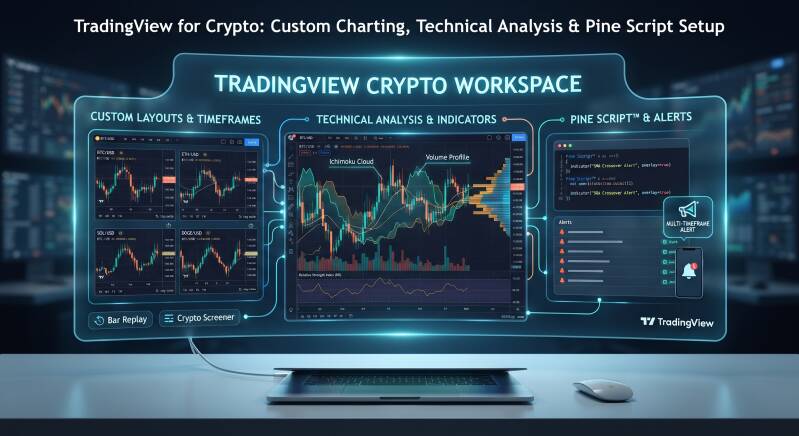
Why TradingView is the Standard for Crypto Charting
The cryptocurrency markets operate 24/7 and are highly volatile, requiring charting software that is fast, accessible from anywhere, and deeply customizable. Unlike exchange-native charts, which are often limited in scope and drawing tools, TradingView provides a unified environment.
It aggregates live price data from hundreds of different centralized exchanges (like Binance, Coinbase, and Kraken) into a single interface, allowing for true market-wide analysis without switching tabs.
Core Features of the TradingView Crypto Setup
TradingView offers a massive suite of tools designed specifically for active traders and technical analysts:
Advanced Multi-Timeframe Charting: Analyze assets simultaneously across various timeframes (e.g., 4-hour, daily, and weekly) on a single screen.
-
Vast Indicator Library: Access thousands of community-built indicators alongside standard tools like Moving Averages, RSI, and Bollinger Bands.
-
Pine Script™ Customization: Write your own technical indicators and strategy backtesting scripts from scratch.
-
Sophisticated Alert System: Set multi-condition alerts (e.g., "RSI crosses 70 and price breaks VWAP") sent directly to your phone or email.
-
Bar Replay Mode: Step backward in time on any chart to practice trade execution or visually backtest strategies against historical price action.
Step-by-Step: Configuring Your Crypto Workspace
Getting the most out of TradingView starts with organizing your workspace for efficiency.
-
Select Your Exchange Data: Ensure you are viewing the correct price feed. For example, if you trade on Binance, type BINANCE:BTCUSDT in the symbol search bar to get the precise spot price for that venue.
-
Create a Watchlist: Organize your preferred crypto pairs (e.g., Majors, DeFi, NFTs) in the side panel for quick navigation.
-
Setup Multi-Chart Layouts: (Available on Pro plans) Divide your screen into a grid (e.g., 2x2 or 4 split) to view BTC, ETH, and two other leading altcoins simultaneously.
-
Customize Visuals: Adjust the color theme, candlestick colors, and background grid to reduce eye strain during long analysis sessions. Save this as a default template.
Utilizing Technical Analysis Indicators
While basic indicators are useful, TradingView excels at visualizing complex market data.
-
Overlay vs. Pane Indicators: Place indicators like Ichimoku Clouds over the price action, or move oscillators like MACD into separate panes below the chart.
-
Volume Profile: Activate Visible Range Volume Profile (VRVP) to see the concentration of trading activity at specific price levels on the right side of the chart, identifying key support and resistance zones.
-
Custom Indicators (Invite-Only): Many advanced traders use custom community scripts. Search the Public Library for highly rated tools like "Lux Algo" or "Market Cipher" to test different analytical approaches.
Introduction to Pine Script: Custom Indicators & Alerts
Pine Script is TradingView's proprietary programming language, allowing you to create anything from simple moving averages to complex automated strategies.
Conclusion: Leveling Up Your Trading Workflow
TradingView is more than just a place to look at charts; it is an integrated research and execution platform. By mastering custom layouts, leveraging the depth of the indicator library, and beginning your journey into Pine Script development, you transform your trading approach from reactive to data-driven.
Add comment
Comments